Last week, I needed a software tool for my AJAZZ macro pad, a little device that lets me customize keyboard shortcuts or macros. Instead of sitting down to code it myself (not even tried, of course 😅), I decided to try something different: I had four AI assistants work on it together at the same time. Here is how it went in plain language.
Why I Tried Working With Multiple AIs
I have been a data analyst for years, so I am used to create problems where there are not any until I dig in. But coding solo with a simple single AI can feel slow, especially when you hit a tricky technical detail. I wondered: what if I could have different AI helpers tackle different pieces simultaneously? Not to replace my judgment, but to see if their combined speed could beat my solo pace. For a small side project like this, it was worth a try.
My AI Team and Their Roles
I did not just give them the same task. I assigned each a clear role based on what they are known for:
- Claude Code wrote the main Python code, which is the part that makes the macro pad talk to my computer.
- Windsurf reviewed Claude’s code for mistakes, security risks, or overly complex parts. It was in charge of leveraging the project’s Pydantic models and Ruff configuration to ensure code quality and type safety.
- Lovable built the project website and the first steps demonstration. They offered a free trial for a day, so I used it.
- Perplexity researched technical details, like how the macro pad actually communicates with the computer or what similar tools exist.
What the Workflow Actually Felt Like
Instead of waiting for one AI to finish before starting with the next, I gave them overlapping tasks. It felt less like relay racing and more like having a group conversation where everyone chimes in with their specialty.
Here is a real example from the morning:
- I told Claude, “Start coding the part that detects when I plug in the macro pad.”
- At the same time, I asked Perplexity, “Look up the exact technical specs for how AJAZZ macro pads send signals.”
- When Perplexity sent back the protocol details, I immediately said to Claude, “Use this info to finish the detection code.”
- While Claude was implementing that, I had Windsurf review his early code for any red flags.
- Lovable was simultaneously building the website, so when Claude added a new feature like generating icons with AI, I told Lovable to showcase it, and Perplexity helped condensing all the job done into brief, clear content for the website.
This meant no waiting. If Perplexity found a better way to do something at 10 AM, Claude could try it by 11 AM. If Windsurf spotted a confusing error message at 2 PM, Lovable could update the website instructions before I went for some water.
One Example: Making It Work With WSL2
A tricky part was getting the tool to work if you are using WSL2 (Windows Subsystem for Linux), a way to run Linux tools inside Windows. Normally, this involves fiddling with USB settings, which frustrates a lot of users.
Here is how the team handled it, step by step:
- Perplexity found Microsoft’s official tool for sharing USB devices, usbipd, and noted where people usually get stuck.
- Claude wrote the exact PowerShell commands needed to make the macro pad visible to WSL2.
- Windsurf suggested adding clear error messages if the USB sharing fails so users are not left guessing.
- Lovable turned those steps into simple instructions with terminal animations reflecting the user journey.
The result was a feature that actually works smoothly because several different AI eyes looked at it from different angles.
How MCP and CLI Work Together: Making It Ridiculously Easy
The magic happens when you combine the CLI with MCP. Here is how they make managing your macro pad effortless:
From Your Terminal (CLI)
# Add a new button
ajazz button set 1 --label "Terminal" --command "xterm"
# Generate an AI icon for it
ajazz image set 1 --generate "terminal command line icon"
# See all your buttons
ajazz button list
From Claude Code (MCP)
# Claude Code can do the same thing programmatically
set_button(button_id=1, label="Terminal", command="xterm")
set_button_image_from_prompt(button_id=1, prompt="terminal command line icon")
The Real Power: Both Work Together
When you use the CLI, your changes are saved to buttons.yaml and the daemon picks them up automatically. When you use Claude Code with MCP, it is the same thing but:
- Faster for bulk changes: “Add 5 buttons for these tools”
- Perfect for automation: “Set up buttons based on my project structure”
- AI powered: “Generate icons that match what each button does”
Example: Setting Up Development Environment
CLI approach:
ajazz button set 1 --label "VS Code" --command "code"
ajazz button set 2 --label "Terminal" --command "xterm"
ajazz button set 3 --label "Browser" --command "firefox"
ajazz image set 1 --generate "code editor icon blue"
ajazz image set 2 --generate "terminal black and green"
ajazz image set 3 --generate "firefox orange fox"
MCP approach:
# Claude Code can read your project structure and set up buttons automatically
set_button(1, "VS Code", "code")
set_button(2, "Terminal", "xterm")
set_button(3, "Browser", "firefox")
set_button_image_from_prompt(1, "code editor icon blue")
set_button_image_from_prompt(2, "terminal black and green")
set_button_image_from_prompt(3, "firefox orange fox")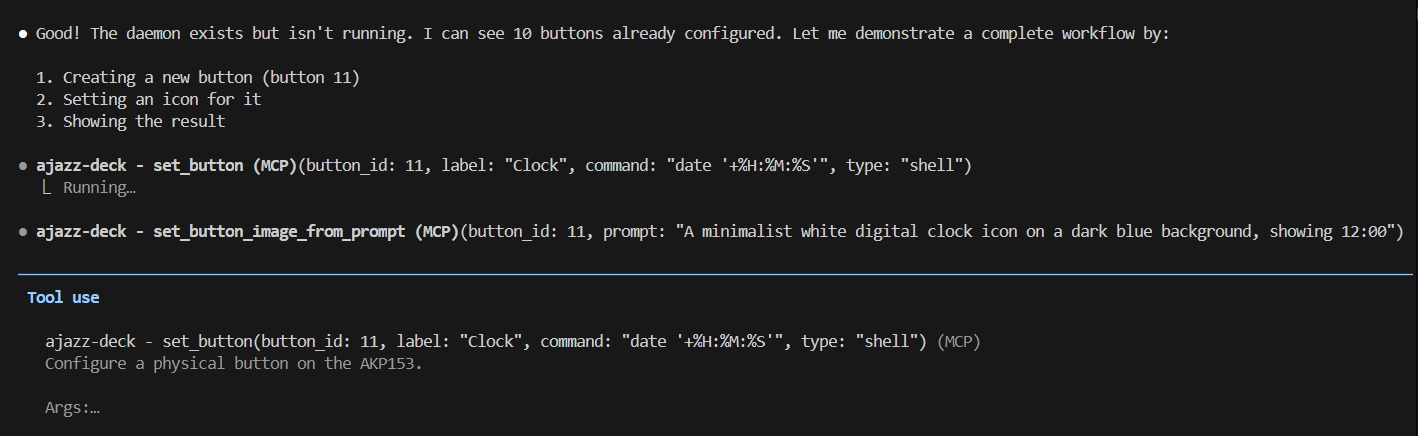
Demonstration of AJAZZ-DECK custom MCP
Why This Matters
CLI: Perfect for quick changes, testing, and manual setup.
MCP: Perfect for AI agents to configure, automate, and integrate with your workflow.
Both: Use the same configuration file (buttons.yaml) so they never conflict.
You can switch between them anytime. Use CLI when you want quick manual control, use Claude Code when you want AI powered automation. It is not one or the other; it is both working together to make managing your macro pad ridiculously easy.
…Then, What I Actually Did?: My Human Role
I was not writing code; I was the connector and translator. My job was to:
- Keep everyone on the same page, telling Claude what Perplexity found or what Lovable promised on the website.
- Turn Windsurf’s warnings into specific fixes for Claude to make.
- Step in when the AIs talked past each other, which happened more than I would like.
It felt less like coding and more like making sure the conversation between the AIs did not go off the rails.
The Outcome
What should have taken me a weekend of solo work got done in a single afternoon. More importantly:
- Windsurf caught a silly yet complex oversight in Claude’s early code that I would have missed completely.
- Perplexity’s research made us simplify the setup process.
- Having Windsurf build the documentation and testing in parallel meant the documentation evolved with the code, not weeks after. Also, I followed the approach of having two CHANGELOG files: one for the public, and an internal one for AI agents.
The Tendency in 2026
Using multiple AI tools like this is not experimental anymore; it is becoming standard for side projects and prototypes. What is striking is how specialized they have become:
- AIs that write code like Claude are getting better at overall structure.
- Research AIs like Perplexity surface niche technical documentation incredibly fast.
- Website builders like Lovable makes everyone able to create website stupidly easy (at least, for small projects like this).
- Agentic IDEs like Windsurf act as the bridge between CLI agents and the IDE itself, but also AI powered.
But crucially, building CLI systems and MCP servers has become an everyday commodity, with the MCP raising concerns about its high token consumption. Teams now routinely use AI assistants to handle these tasks, freeing humans to focus on higher level design and integration.
Lessons for Trying This Yourself
If you want to experiment with parallel AI work on your own project:
- Give each AI a clear, separate task (for example: Research X, Write Y, Review Z).
- Keep your main code folder as the single source of truth; everyone must work from those exact files.
- Be the translator: take what one AI finds and turn it into a specific request for another.
- Never trust the output from one AI blindly; use another to verify key points before moving forward. Or even better: your own judgement. You will probably come up with better ideas than an AI. Originality is key.
It will not replace your judgment, but it can turn a lonely session into a collaborative task. My little macro pad works better because four different perspectives looked at it. This is not because any single AI is perfect, but because their strengths covered each other’s blind spots.
If you are curious, you can check out the full project here: AJAZZ Deck on GitHub (https://github.com/jrodeiro5/ajazz-deck).
Note on Vendored Code & Icon Display: This project includes vendored code from the Mirabox StreamDock SDK (located in sdk/). Icon display on the AKP153 device is still under investigation. While icon generation works reliably, the actual rendering on the device’s display may vary based on firmware version and device state.
Glossary
- CLI (Command Line Interface): A text format used to give commands to a computer.
- MCP (Model Context Protocol): A standard that lets AI apps safely access data and tools on your local computer.
- WSL2 (Windows Subsystem for Linux): A feature that lets you run a Linux environment inside Windows without needing a separate virtual machine.
- usbipd: A Microsoft tool that shares USB devices between Windows and WSL2, allowing Linux programs to access hardware like keyboards.
Honest note: this post was partially written by an AI, supervised by me.
Project: ajazz-deck, GitHub